

How to Create QR Codes for Scheduled Shorts (Step-by-Step)
Taking some healthy cooking classes will teach you how to make healthy foods at home? Perhaps a Chef LeeZ cooking class.
How to Create QR Codes for Scheduled Short Posts (Step-by-Step)
QR codes are a powerful way to move Short-form viewers to long-form content, blogs, or resources—even after the post is scheduled. Follow the steps below to create, brand, and deploy QR codes correctly for Shorts, Reels, and TikToks.
Step 1: Choose the Destination Link
Before creating your QR code, decide where it should send viewers:
- Related blog post
- Long-form YouTube video
- Free resource or download
- Link-in-bio / content hub (recommended for flexibility)
Best practice for scheduled posts:
Use a permanent landing page or a link hub so your QR does not become outdated.
Step 2: Create the QR Code
You have two reliable options depending on your needs.
Option A: Google Built-In QR Code (Fast & Simple)
- Open the webpage you want to link to
- Right-click anywhere on the page
- Select “Create QR code for this page”
- Click Download
- File format:
.jpg - Smaller file size
- No account required
Option B: Dynamic – Tracked and URL changeable QR Code (Flexible & Professional)
-
Create a short link using a service such as:
- Bitly
- Linktree
- Beacon
- https://www.the-qrcode-generator.com/ 2 FREE Dynamic QR Codes, and some tracking tracking
-
Generate a Dynamic QR code from that link
-
Download as PNG or JPG
- Allows click tracking
- Destination URL can be changed later
- Ideal for scheduled or evergreen content
Step 3: Brand the QR Code
What you’ll need
-
Your downloaded QR code (PNG, .jpg is smaller file)
-
Your logo (PNG with transparent background preferred)
-
Editing software:
- Photoshop
- Microsoft Publisher
- Canva (desktop) (owns your content)
- Branding Steps
-
Open the QR code image in your editor
-
Place your logo in the center of the QR code
-
Size the logo just large enough to:
- Cover the default center icon (if present)
- Stay under 20–25% of the QR surface
-
Place the QR + logo on top of a square background
-
- Use a light off-color (light gray, cream, soft brand color)
2. Export as PNG or .jpg, square format (1:1)
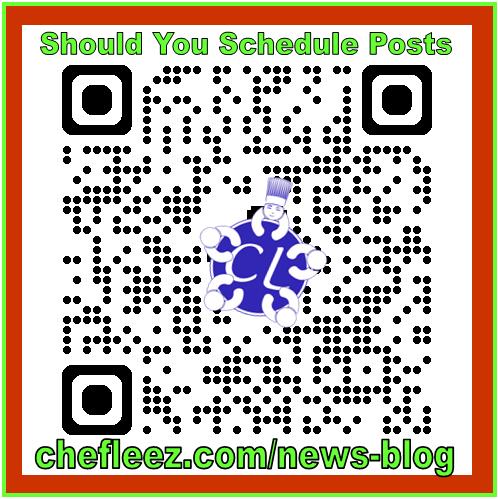
This creates a single, clean QR image ready for video or thumbnails.
Step 4: Insert the QR Code Into Shorts (CapCut Free)
NOTE: CapCut has license to use your uploads and creations
- Import your video
- Add the QR image as an Overlay
- Position it:
- Bottom-center or bottom-right
- Avoid platform UI zones (likes, captions, subscribe)
-
Display duration:
-
- Minimum 3–5 seconds
Add a clear call-to-action above the QR:
- “Scan for Full Details”
- “Read the Full Blog”
- “More Info → Scan”
Tip: QR codes scan best when the final scene pauses or slows slightly.
Step 5: Test Before Scheduling
Before scheduling your Short:
- Scan the QR on at least two different phones
- Confirm:
- Fast load time
- Mobile-friendly layout
- No login required
Once scheduled, the QR cannot be corrected without re-uploading.
Comparison Table: Google QR vs Tracked QR
| Feature | Google QR Code | Tracked QR Code |
|---|---|---|
| Setup Speed | Very fast | Moderate |
| Account Required | No | Yes |
| File Format | JPG | PNG or JPG |
| File Size | Small | Medium |
| Click Tracking | ❌ No | ✅ Yes |
| Change Destination URL | ❌ No | ✅ Yes |
| Best For | Fixed pages | Scheduled & evergreen content |
| Creator Flexibility | Low | High |
Summary:
- Google QR = speed & simplicity
- Tracked QR = control & analytics
Branded QR End-Screen Layout (Optimized for Shorts)
Recommended Layout
- Canvas: 9:16 (Shorts format)
- QR Placement: Bottom-center or bottom-right
- Background: Clean, low-contrast color or blurred frame
- Logo: Embedded in QR center only
- Text (Top or Above QR):
- “Scan for the Full Guide”
- “Read the Full Blog”
- “More Details → Scan”
Timing
- Display end-screen for 3–5 seconds
- Keep motion minimal
- Avoid covering the QR with subtitles or UI elements
Why This Works
- High scan success
- Clear viewer instruction
- Consistent branding
- Reusable across multiple Shorts
QR Codes as a Smart Workaround for Scheduled Content
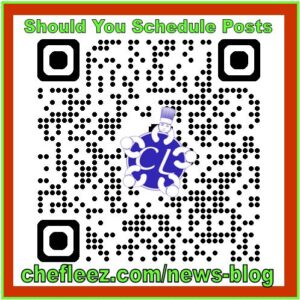 When scheduling YouTube Shorts and videos across time zones, creators often run into a limitation: related links can’t always be attached at publish time. QR codes offer a practical workaround.
Used correctly, QR codes act as a secondary access point—not a replacement for links. They allow viewers to reach related long-form videos or blog content even when a Short is scheduled to go public without live linking enabled.
- The key is restraint and strategy. QR codes work best when:
- Shown briefly at the end of a Short
- Clearly labeled with a purpose (watch, read, learn more)
- Used as a supporting CTA, alongside spoken prompts and descriptions
For creators managing blogs, Shorts, and long-form videos together, QR codes add redundancy, improve accessibility on larger screens, and create another measurable path to content—without breaking scheduling workflows.
See our related blogs, we break down:
- QR codes and YouTube use; publishing and scheduled publishing, prep for T.V.
- Best practices for Shorts, videos, and blogs
- How to measure ROI and viewer behavior
- When QR codes help—and when they don’t
This turns a platform limitation into a scalable publishing advantage.
You can see our related videos and blogs by the following links.
Our related YouTube shorts,
Our related YouTube Videos
You can see all our wellness related blogs here.
To never miss our future postings sign up to receive our newsletter by the short form below.